
This tutorial walks you through using the Upload and Download module, which is a convenient tool for transferring files to and from your server. Getting started Before proceeding, make sure you’ve logged into Virtualmin. Click on Webmin in the top-left corner of the dashboard, navigate to Tools, and select Upload and Download. Downloading files to your server The Upload and Download module provides a straightforward way to download files from the internet directly to your server:
This tutorial walks you through using the Upload and Download module, which is a convenient tool for transferring files to and from your server.
Getting started#
Before proceeding, make sure you’ve logged into Virtualmin. Click on Webmin in the top-left corner of the dashboard, navigate to Tools, and select Upload and Download.
Downloading files to your server#
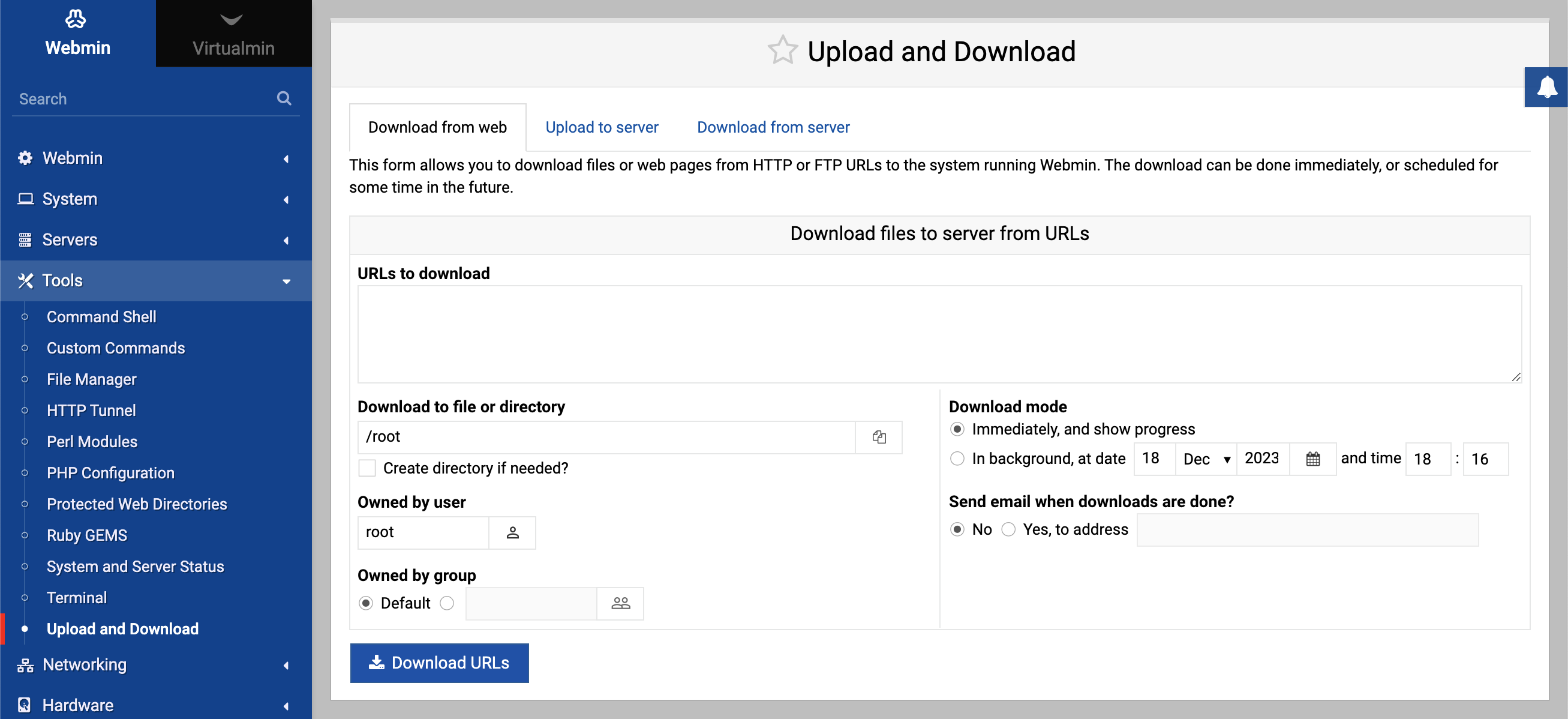
The Upload and Download module provides a straightforward way to download files from the internet directly to your server:
URLs to download
In the Download from web tab, you’ll find a text area labeled URLs to download. Enter the full URL of the file you wish to download here, such ashttps://example.com/downloads/myfile.tar.gz.Destination directory
Specify the target directory in the Download to file or directory field. For instance, to save to the root user’s home directory, input/root.Download options
Choose your download preferences, such as creating a directory if it doesn’t exist, setting file ownership, and deciding whether to download immediately or schedule for later.Initiate download
Click on Download URLs to start the download process. If you’ve scheduled it for later, the module will handle this automatically at the specified time.
Uploading files from your computer to your server#
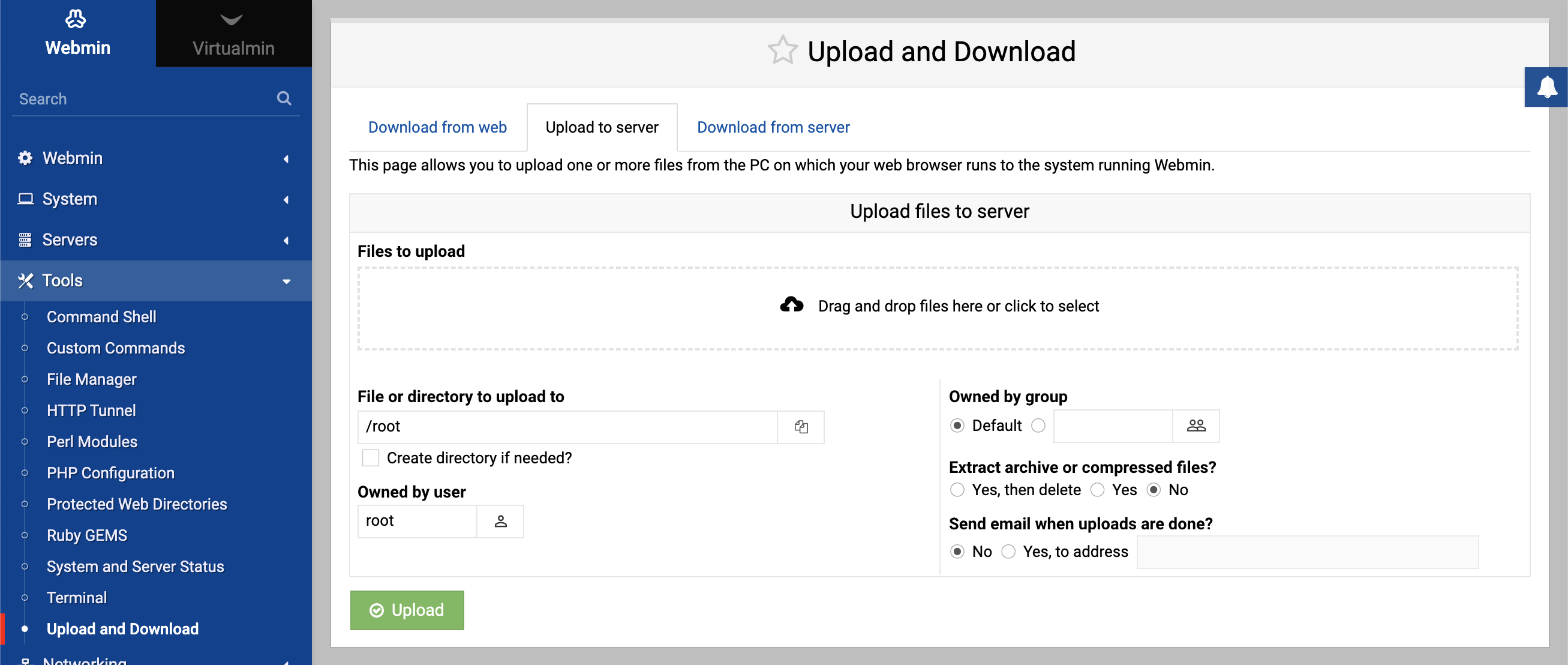
Uploading files is just as easy with the module’s user-friendly interface:
Upload to server tab
Switch to the Upload to server tab. Here you can drag and drop files or click to select files through the file browser.Select files
Use the provided file selection area to choose the file(s) from your computer that you want to upload.Destination directory
In the File or directory to upload to field, enter the path where you want the files to be saved on the server, like/root.Upload preferences
Determine whether to create the directory if it doesn’t exist, set ownership, and whether to extract archives upon upload.Start upload
Press the Upload button to transfer the files from your computer to the specified directory on the server.
Additional options#
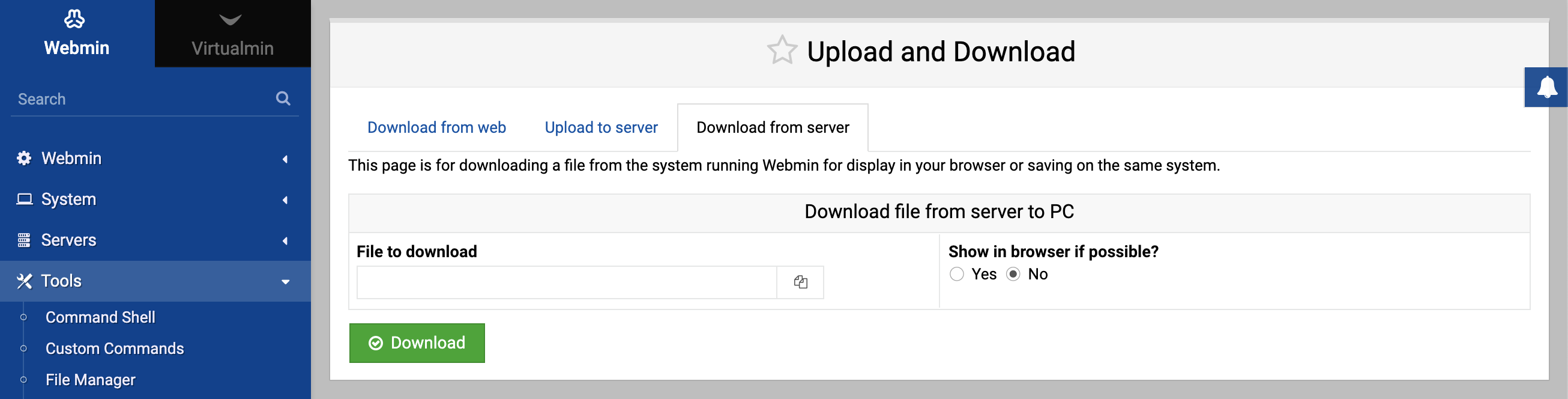
Download from server: Use this feature to download files from your server to your computer. Enter the file path on the server, and click Download.
Email notifications: Optionally, you can set the module to send you an email notification when the download or upload completes. Simply select the appropriate option and provide an email address.
File management after transfer: The module allows you to extract compressed files after upload or delete the archive, as well as perform similar actions after downloading, like changing file permissions or ownership.
By following these steps, you can efficiently manage file transfers between the web, your local computer, and your server.
Source: https://www.virtualmin.com/docs/getting-started/how-to-use-upload-and-download-module/