
This tutorial guides you through the use of the web-based HTML file manager within Virtualmin, which is a versatile tool for file management on your server. Accessing and navigating the file manager The file manager in Virtualmin is a powerful interface for administrators and users to access and modify files. Click Virtualmin Select the Virtualmin section located on the top-left of the dashboard. Open File Manager Find and click the File Manager link to view the files within the document root directory of the virtual server:
This tutorial guides you through the use of the web-based HTML file manager within Virtualmin, which is a versatile tool for file management on your server.
Accessing and navigating the file manager#
The file manager in Virtualmin is a powerful interface for administrators and users to access and modify files.
Click Virtualmin
Select the Virtualmin section located on the top-left of the dashboard.Open File Manager
Find and click the File Manager link to view the files within the document root directory of the virtual server: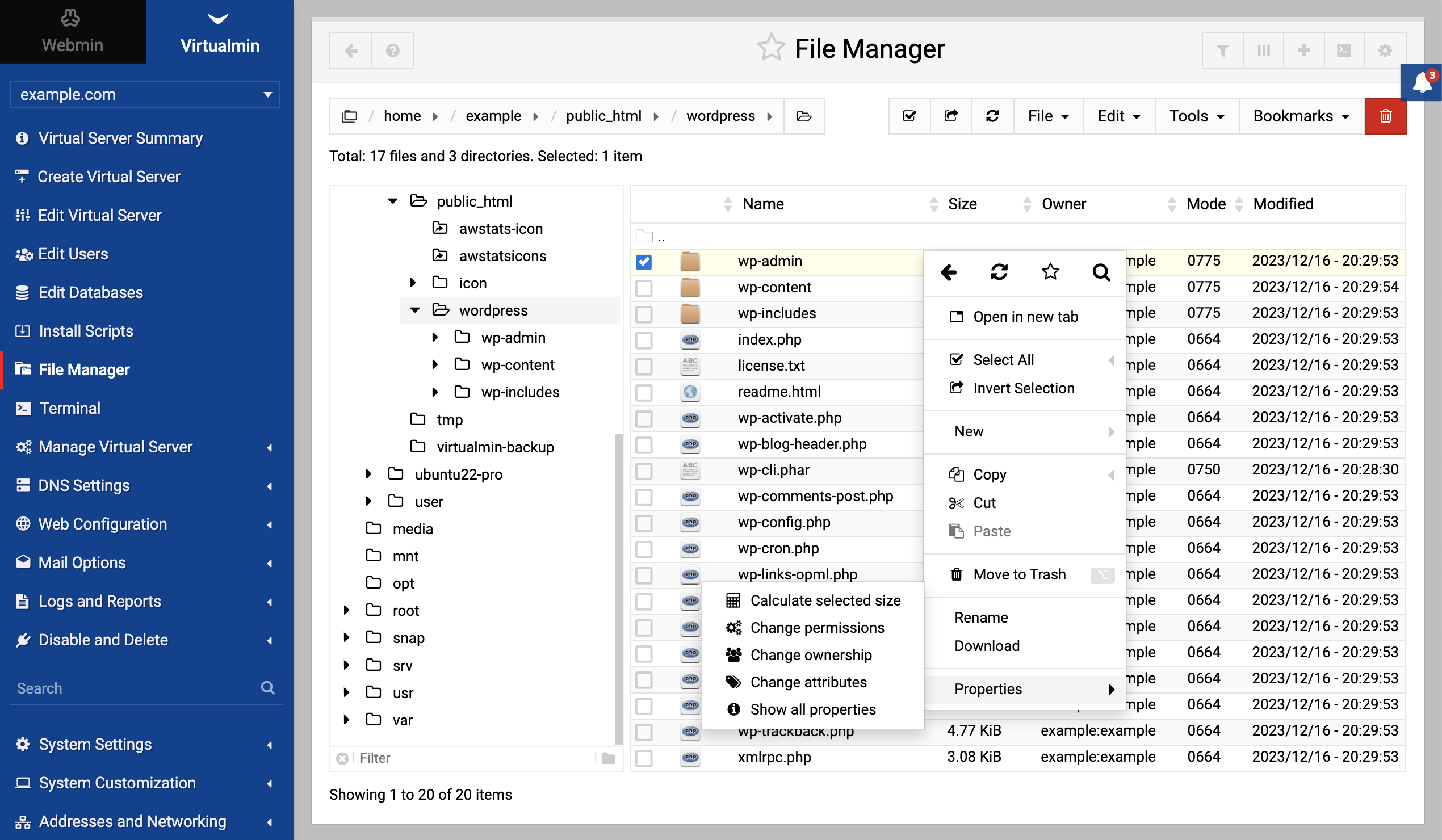
File manager features#
The file manager interface allows you to perform a variety of file operations. Here’s how you can use the features depicted in the screenshot provided above:
Directory tree: On the left panel, you’ll see a directory tree that lists all the directories you have access to. You can navigate through these directories by clicking on them.
File and directory listing: The main pane shows the contents of the selected directory, including files and subdirectories.
Selecting items: You can select files or directories for further actions by checking the box next to their names.
File management options: With the selected file(s), you can perform tasks such as:
- Create new symbolic link: Establish a symbolic link to another file or directory within the server.
- Create new file: Initiate a blank file or script from scratch.
- Create new directory: Organize your files better by adding new directories.
- Create new archive: Compress files and directories into an archive for efficient storage and transfer.
- Transfer: Seamlessly upload and download files to the server.
- Copy/cut/paste: Duplicate or move files within the server.
- Delete: Remove files or directories.
- Rename: Change the name of a file or directory.
- Download: Save files to your local computer.
- Encrypt: Secure your files by encryption.
- Properties: View and modify file attributes, such as permissions or ownership.
File information: The bottom section of the file manager displays the details of the selected file, such as name, size, owner, permissions, and last modification date.
Actions menu: The top toolbar contains actions like Select all, Invert selection, Refresh, and other quick options to manage files efficiently.
File manager keyboard shortcuts#
In the file manager, alongside standard point-and-click operations, you can use the following keyboard shortcuts for quick actions.
- Quick search: Start typing to search for files immediately.
- Cursor navigation: Use the
up/downarrows,pgup/pgdn,home, andendto move the cursor. - Directory navigation: Press
enterto open a directory andbackspaceto go back to the previous directory. - Context menu: Right-click or use
⌥Alt
+ right-click
to open the context menu for more options. - Select/Deselect files: Use
⌘Ctrl
+ A
to select all,⌘Ctrl + ⇧Shift + Ato deselect all, or*to invert selection. - File operations: Press
F2to change permissions,F3to view,F4to edit,F6to rename,F7to create a new directory, andF8to delete. - File properties: Press
⌘Ctrl + Ior⌥Alt + Enterto show file properties. - Manual path entry: Use
⌘Ctrl
+ L
to enter a path manually. - Creating new items: Use
⇧Shift
+ F4
to create a new file and⇧Shift + F7for search functionality. - Compress/decompress: Use
⌥Alt
+ F5
to compress and⌥Alt + F6to decompress files. - Data management: Use
⌘Ctrl
+ S
to calculate selected size andF9/F10for downloading/uploading to the current directory. - Tab management: Open a new tab with
⌘Ctrl
+ spacebar
, close it with⌘Ctrl + ⇧Shift + spacebar, switch tabs with⌘Ctrl + ⏴or⌘Ctrl + ⏵, and jump to a tab using⌘Ctrl + 1..9. - Clipboard operations: Use
⌘Ctrl
+
⌥Alt
+ C
to copy the file path, and⌘Ctrl + C,⌘Ctrl + X, and⌘Ctrl + Vfor copy, cut, and paste operations. - Refresh: Refresh the current directory with
F5or⌘Ctrl + R.
By familiarizing yourself with these features, you can effectively manage your server’s files directly from your web browser.
Source: https://www.virtualmin.com/docs/getting-started/how-to-use-file-manager/