
This guide provides step-by-step instructions on how to log into the Virtualmin control panel. Virtualmin is a powerful web hosting and website management tool that allows you to manage multiple virtual hosts from a single interface. Logging into Virtualmin is a simple process that allows you to access a wide range of server and website management tools. Once logged in, you can begin managing your virtual hosts, setting up websites, creating email accounts, and more.
This guide provides step-by-step instructions on how to log into the Virtualmin control panel. Virtualmin is a powerful web hosting and website management tool that allows you to manage multiple virtual hosts from a single interface.
Logging into Virtualmin is a simple process that allows you to access a wide range of server and website management tools. Once logged in, you can begin managing your virtual hosts, setting up websites, creating email accounts, and more.
Prerequisites#
- Ensure you have Virtualmin installed on your server.
- Make sure you have the login credentials (username and password) provided by your server administrator or hosting provider.
- Confirm that you have the server’s IP address or domain name where Virtualmin is hosted.
Steps to log in#
Open your web browser
- Launch your preferred web browser (such as Chrome, Firefox, Safari, or Edge).
Enter the Virtualmin URL
- In the address bar, type the URL to access Virtualmin. This will usually be your server’s IP address or domain name followed by the port number 10000. For example:
https://your-server-ip:10000orhttps://yourdomain.com:10000. - Please note that Virtualmin uses HTTPS for a secure connection, so ensure you include
https://at the beginning of the URL.
- In the address bar, type the URL to access Virtualmin. This will usually be your server’s IP address or domain name followed by the port number 10000. For example:
Security warning (if applicable)
- On your first visit, your browser might display a security warning due to Virtualmin’s use of a self-signed SSL certificate. This is normal.
- Proceed by accepting the warning or adding an exception to access the site (the process varies depending on the browser).
Login screen
- Once the Virtualmin login page loads, you will see fields to enter your username and password:
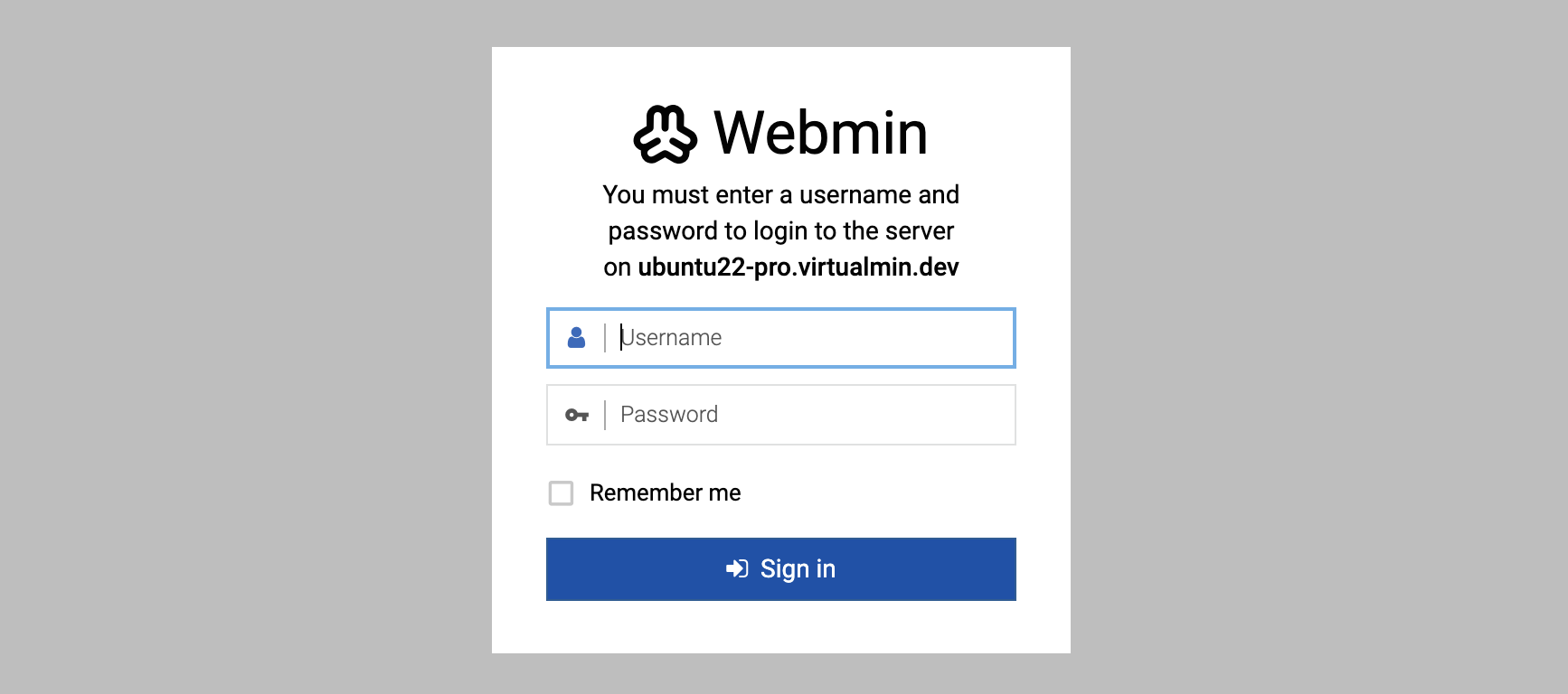
- Once the Virtualmin login page loads, you will see fields to enter your username and password:
Enter credentials
- Type in your Virtualmin username and password. These credentials may differ from your server’s root or admin password.
Access Virtualmin
- After entering your credentials, click the Sign in button or press Enter.
- You should now be logged into the Virtualmin dashboard, where you can manage your hosting environment.
Troubleshooting#
- Incorrect credentials: If you can’t log in, check to ensure you’re using the correct username and password.
- Can’t access Virtualmin URL: Ensure the server is running and the correct IP address or domain is used. Check if the port 10000 is open and not blocked by any firewall.
- Browser issues: If the page doesn’t load correctly, try clearing your browser cache or use a different browser.
Source: https://www.virtualmin.com/docs/getting-started/how-to-log-in-to-virtualmin/